Automatically Catching Planes in SkyCards with an Auto-Clicker
Published January 2nd, 2026 by Emily
I've been playing SkyCards for about two months and quickly figured out how to set up an auto-clicker to click on ads for me. Having basically unlimited captures was great, but I still had to manually convert those to coins by catching planes for hours at a time.
Somewhere around Level 26, I had gotten most of the trophies that felt achievable and set the goal of catching every airport in the USA. It's a difficult goal: after weeks of catching I'm only at 1618/1696.
Travelling from state to state every few minutes to catch flights required a lot of coins. I became impatient, so I figured out how to set up my auto-clicker to catch flights while I slept.
If you need a primer on how to set up an auto-clicker for ads, it's relatively simple. There are instructions for that at the bottom.
What you need
For this guide you'll need to use an Android device and an auto-clicker app that allows you to wait for something to appear on screen and then trigger the next step. I used Frep2 , which is very versatile, although a bit confusing to set up. There's a free version and you should be able to do everything in this guide with the free version.
I'm not going to go into depth about how to use Frep2 in this guide; Frep2 provides resources for that. I'll show how the flow works and then you can set it up with any auto-clicker app you'd like. I also can't give you my exact auto-clicker script because your screen resolution is almost certainly different than mine, so instead I'll walk you through how to set it up yourself.
Frep2 works fine on my inexpensive Samsung Tab A9 and my more expensive Tab S9 FE, although it kept crashing on my Pixel 7 for some reason.
How to set up an auto-clicker for catching planes
Starting at the right airport
With this auto-clicker I'm able to get about 50-70% Perfect Catches, which is a pretty good success rate for doing none of the work myself. In order to do this, I need to be catching with a Blue Sky deployed.
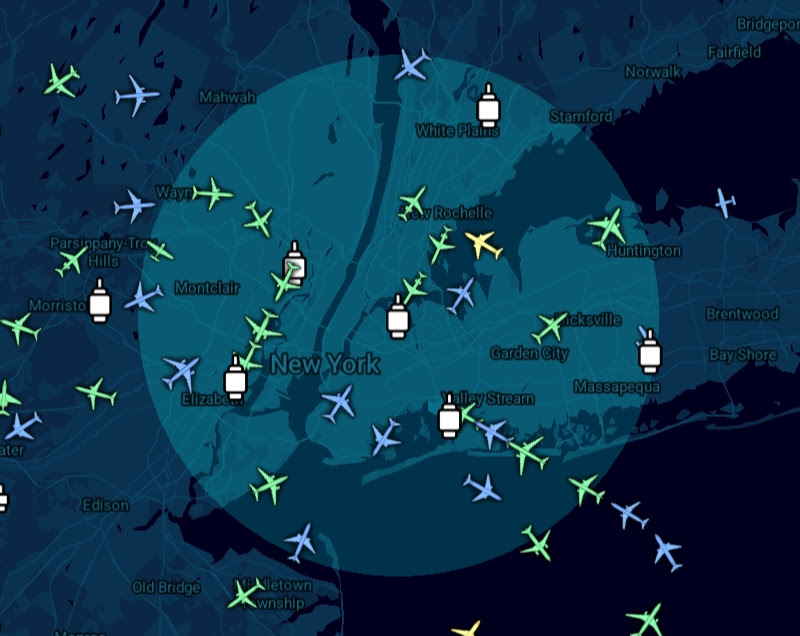
I haven't figured out how to work deploying a Blue Sky efficiently into my script, so I'm relying on others to deploy them for me. On the East Coast of the USA, any airport in New York City works well (I like LGA). After about a month I moved from NYC to Miami, since MIA has lots of smaller airplanes that NYC doesn't often have. On the West Coast I usually choose LAX.
Selecting an airplane
I position my screen to look like the picture below. For the correct framing, I want to have clicked on an airplane and have my selected airport in the center of the lower half of the screen.
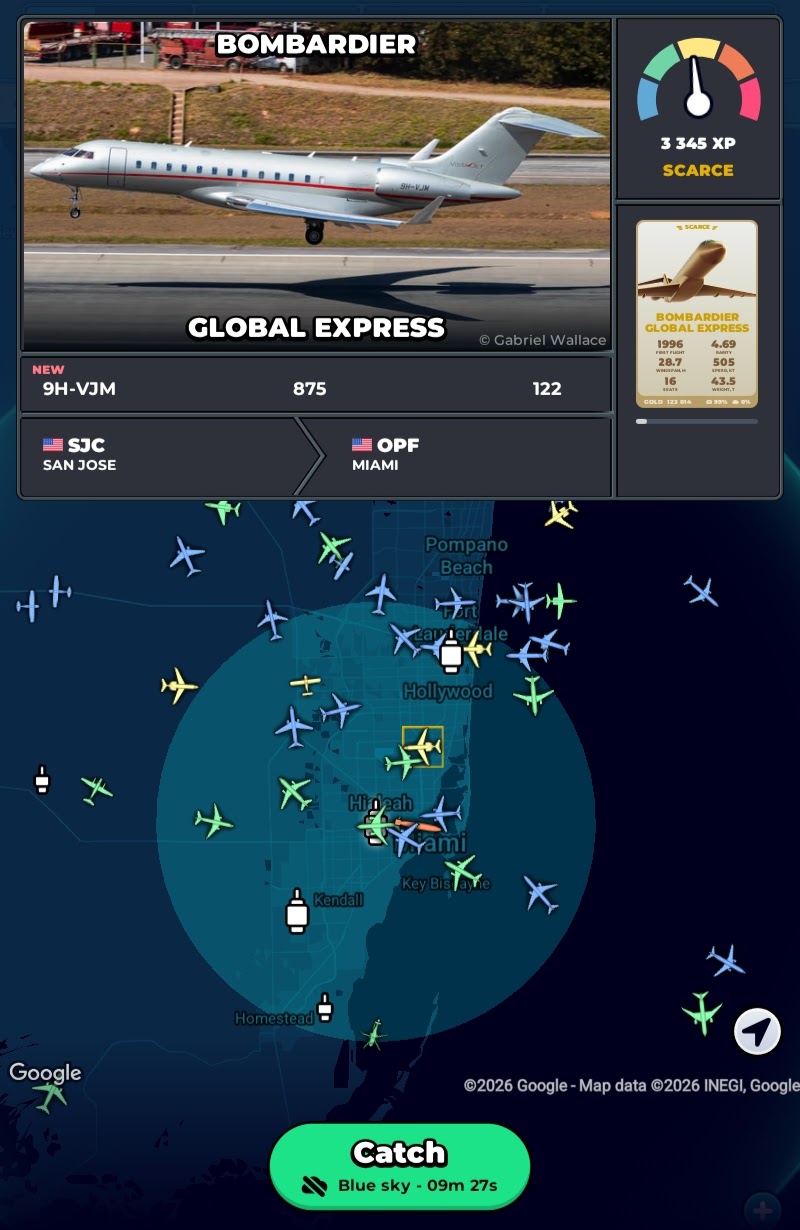
I used my auto-clicker to record myself clicking slowly in a circle around the airport. Then I made the script replicate those clicks.
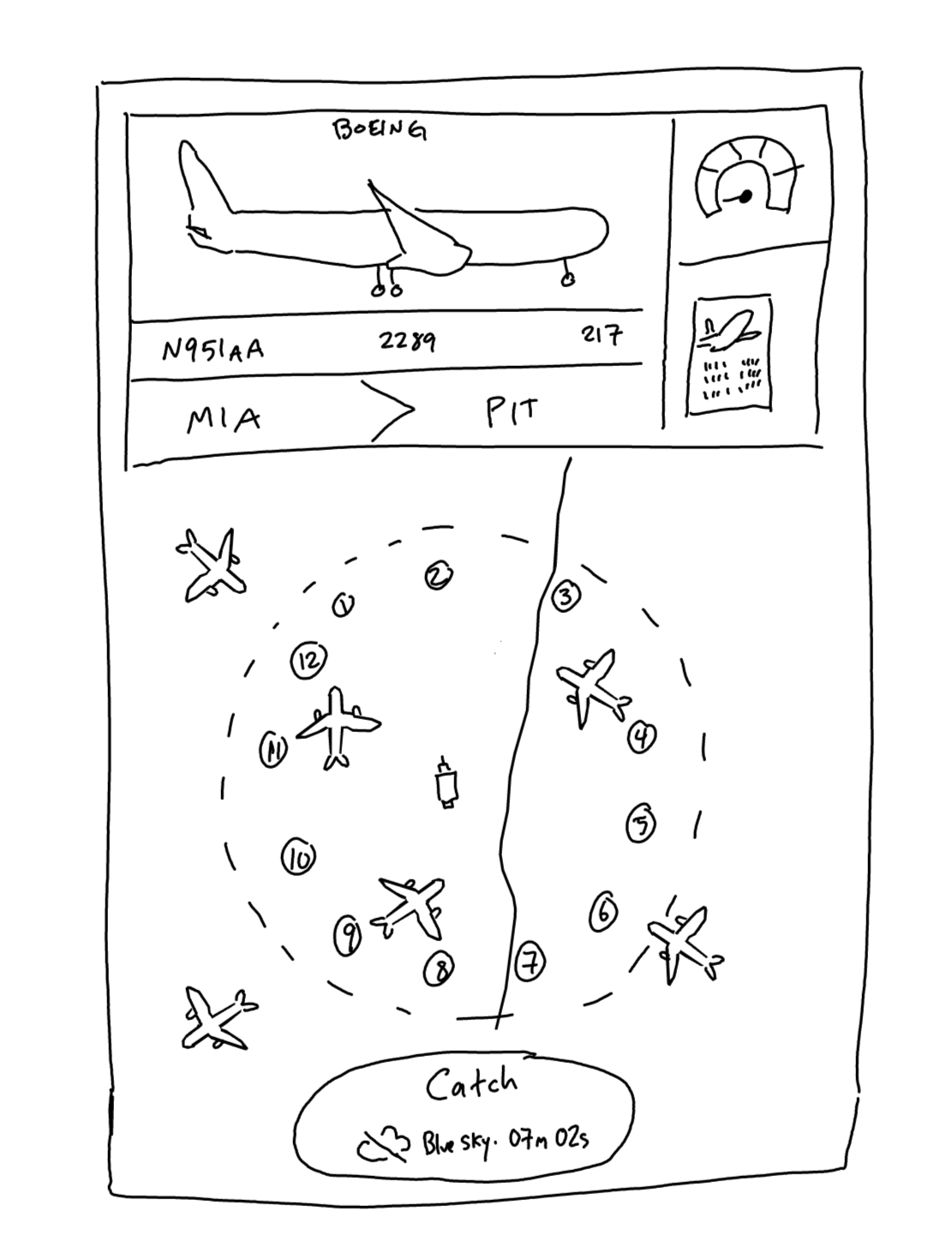
After each click, my auto-clicker script checks the "Catch" button to see whether it matches the blue-sky variant. I only try to catch planes when there's a blue sky for a higher success rate and more XP.
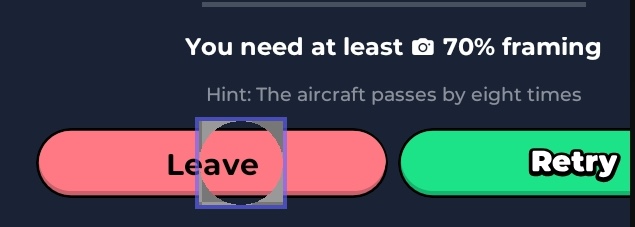
The following picture is a screenshot from Frep2. The picture is the reference screenshot my script uses and the blue box around the word "Catch" indicates the part of the screenshot that the script uses to match up to trigger its next step. Ignore the grey shapes, those indicate where I clicked when recording the screenshot. The button that says "Catch" when there is no blue sky has the word Catch slightly below where it is in this picture, so this will only trigger when there is a blue sky. You don't want to include any part of the time left, because that changes and your auto-clicker will need an exact match.
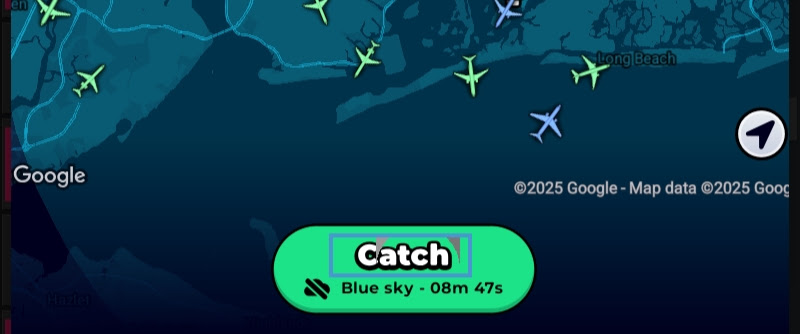
If the auto-clicker doesn't see the blue-sky variant of the "Catch" button, it moves on to the next click and looks again for "Catch" with a blue sky. I have it set to run through about twelve clicks in a circle-ish around the center of the lower half of the screen. If it reaches the last click and does not find a match, it starts at the first click again.
If the blue-sky "Catch" button variant is seen, the auto-clicker script clicks the Catch button and moves on to the next part.
Catching the airplane
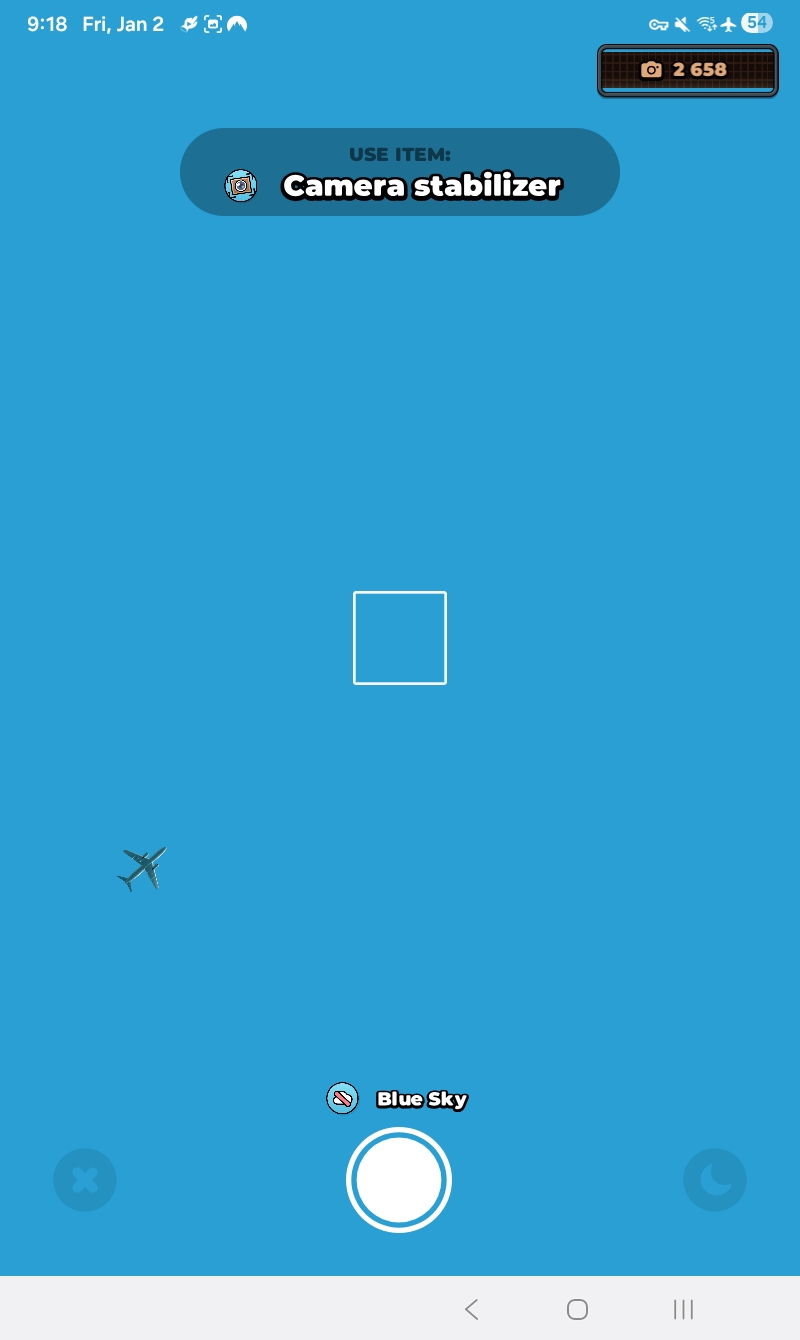
After the catch button is pressed, my auto-clicker script attempts to catch the airplane. I have it set to look only at one edge of the normally white rectangle in the center. When that edge turns green, the auto-clicker clicks the shutter button.

It might be hard to see in the above image, but the blue square for the auto-clicker script to use as the reference image is only around the bottom green line of the rectangle.
I previously tried to set the auto-clicker to look at the whole rectangle, but since the airplane is in the center and planes are different sizes and come from different angles, that approach didn't work reliably. By setting it to look at only one edge, I have a 75% chance that it will trigger on the first pass, and it usually triggers even if the airplane is covering part of that edge.
I set my auto-clicker script to have zero delay; it clicks the shutter button immediately as soon as it registers the green edge. This gives me about a 70% chance or better of getting a perfect catch and almost a 100% success rate of catching the plane at all. My tablet might be a little slower than yours, so you might need to add a slight delay.
Below is an example of what the settings for the "check image" and "click" items look like in Frep2.
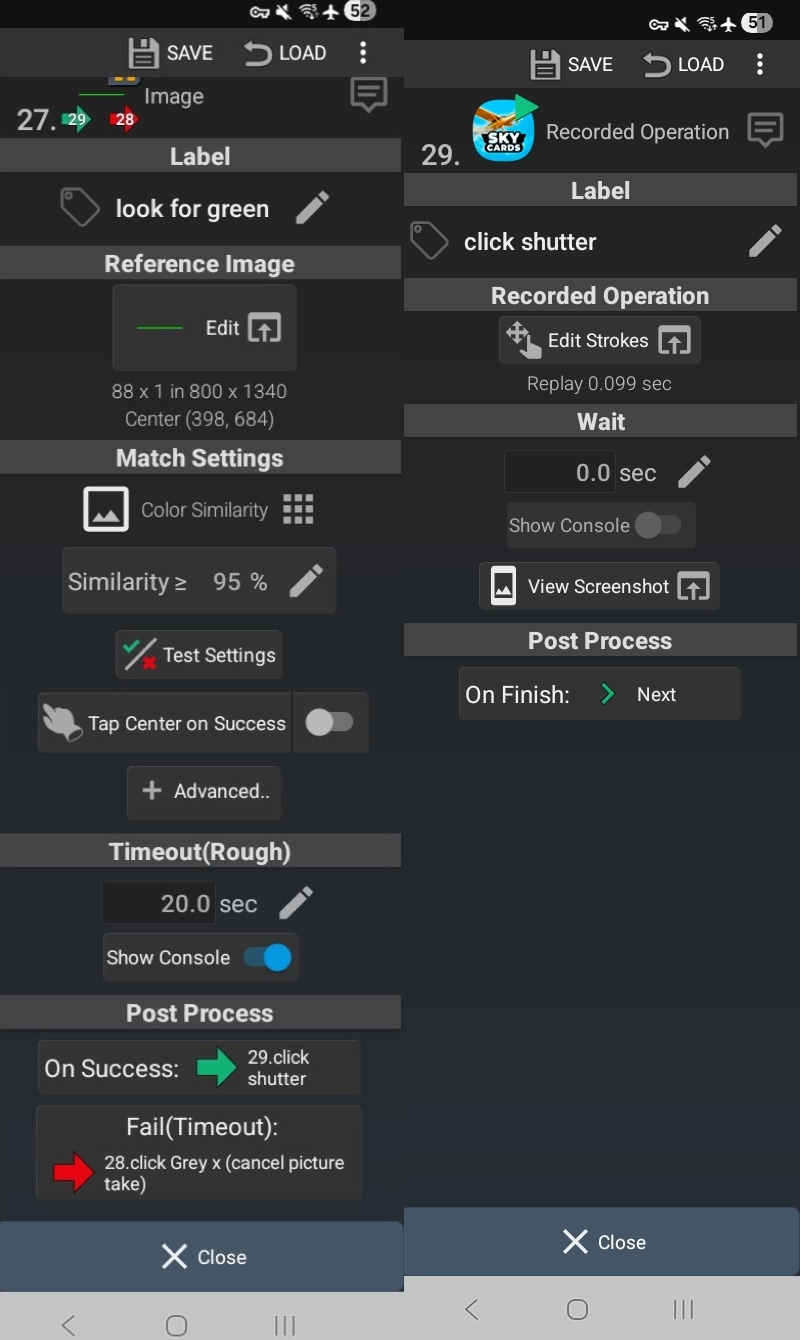
I have a timeout of 20 seconds on the auto-clicker script looking for a green edge. After that, something likely went wrong (probably there isn't a blue sky) and instead of wasting a capture, I have it click the grey X in the bottom left to cancel the capture and send the auto-clicker script back to the beginning.
The rest of the pages
There are several pages that come up after you've successfully caught an airplane. Check my flow chart to see exactly how I set up my auto-clicker script.

You'll notice the second half of my script rotates through looking for several buttons (Leave, Save, X, and Parachute), and if it sees them it branches off to do something. However if it doesn't see the thing it's looking for, it keeps rotating through to the next thing. After running this auto-clicker for several months, I found that sometimes this part of the script will glitch out (maybe a click won't register), so by rotating through all these possibilities my script is as robust as it can be.
With this flow I can usually set the auto-clicker to run and it will go for four hours or longer without a problem. These days the problems usually end up not being related to my script, but instead are the app crashing or a notification coming in that blocks part of the screen.
Successful capture summary page
After you successfully capture the airplane, the summary page will come up. The page should look something like this:
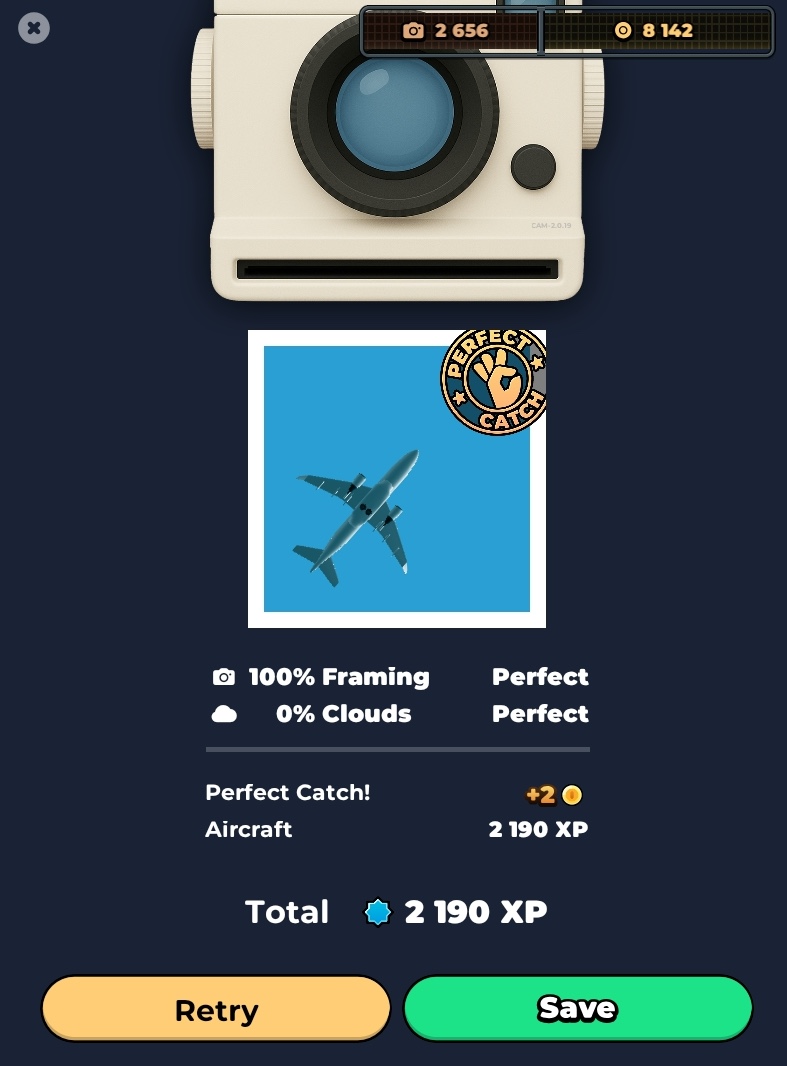
Set your auto-clicker to look for the "Save" button and click it when it appears.

Card page
After the successful capture page, a summary of the card for that airplane appears.
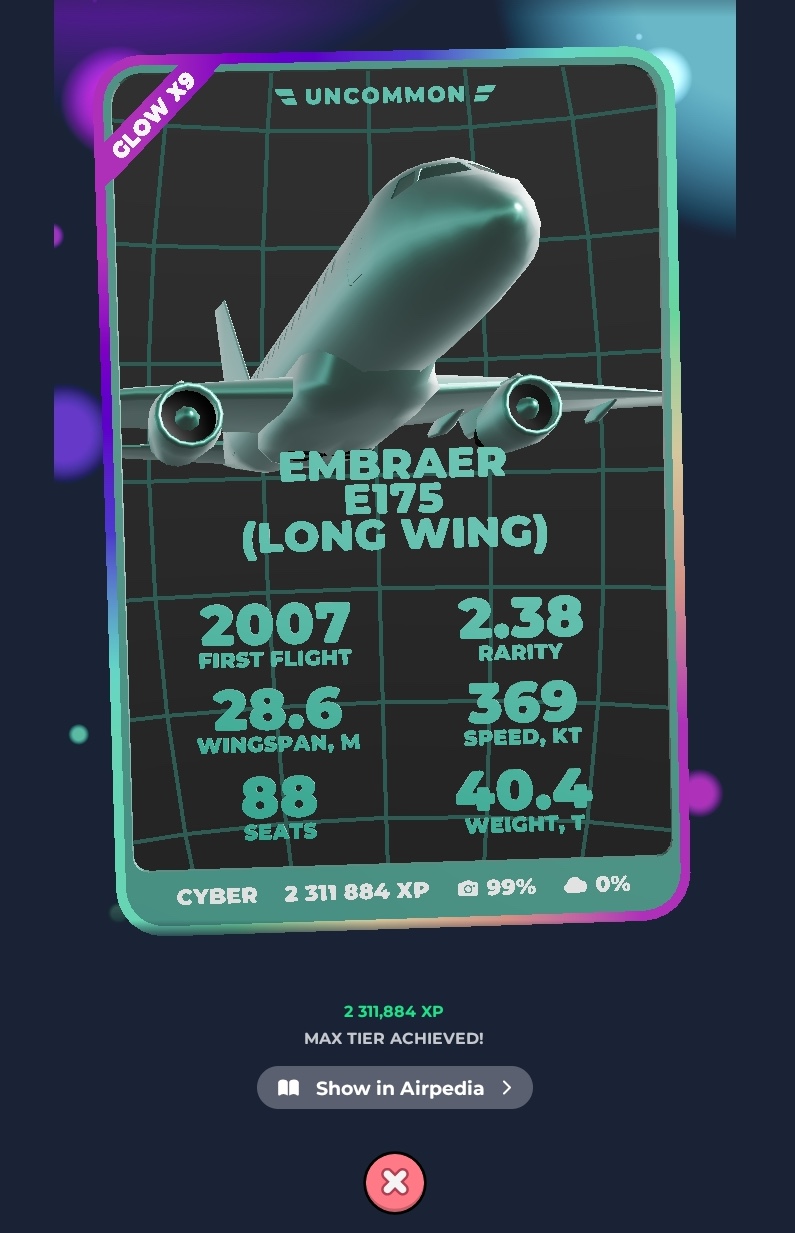
Set your auto-clicker to look for the red X button and click it when it appears. Then return to the beginning of the script.

Unsuccessful capture summary page
If your capture was unsuccessful, your page will look like this:
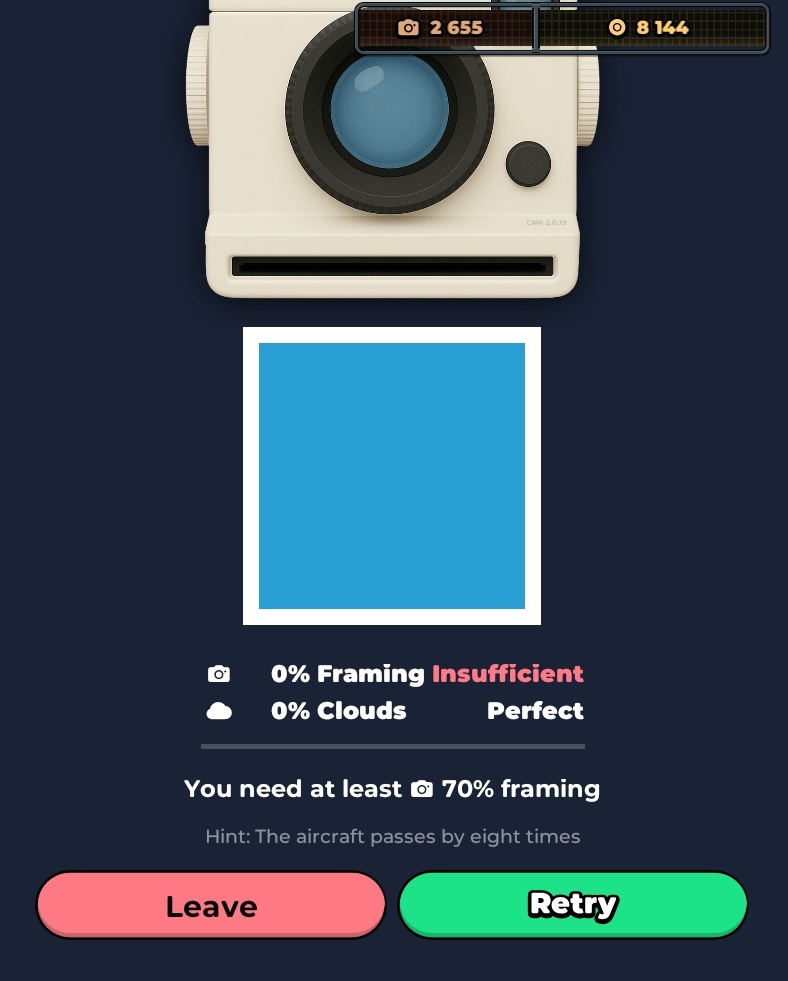
I recommend having your auto-clicker look for the "Leave" button and returning to the beginning of the script. You could have it attempt a Retry, but your mileage may vary depending on why it was unsuccessful.
Package screen
The package screen appears on top of the successful capture summary page.

Set your auto-clicker script to look for the pattern on the parachute (not the package, since the package moves) and click the package when it sees it. Then set a ten second wait and then click "OK". Return to the rest of the loop after so it will continue.
SkyCards app changes
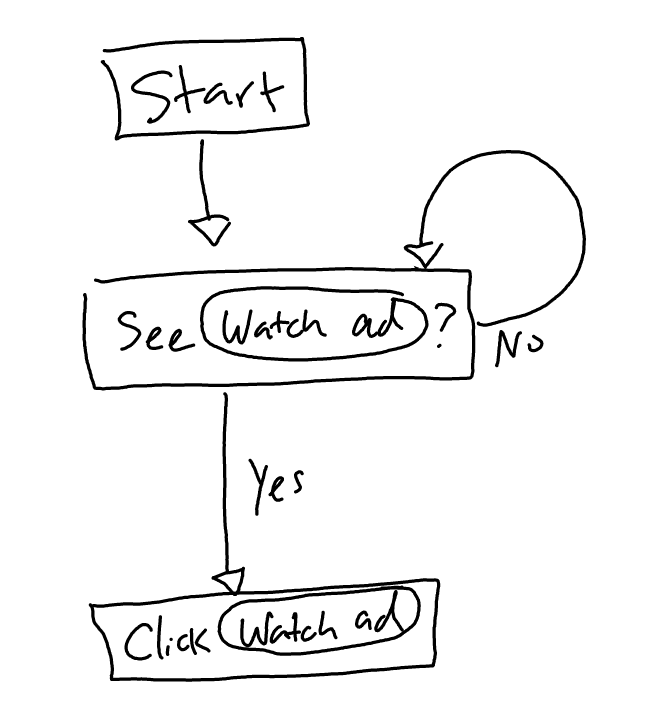
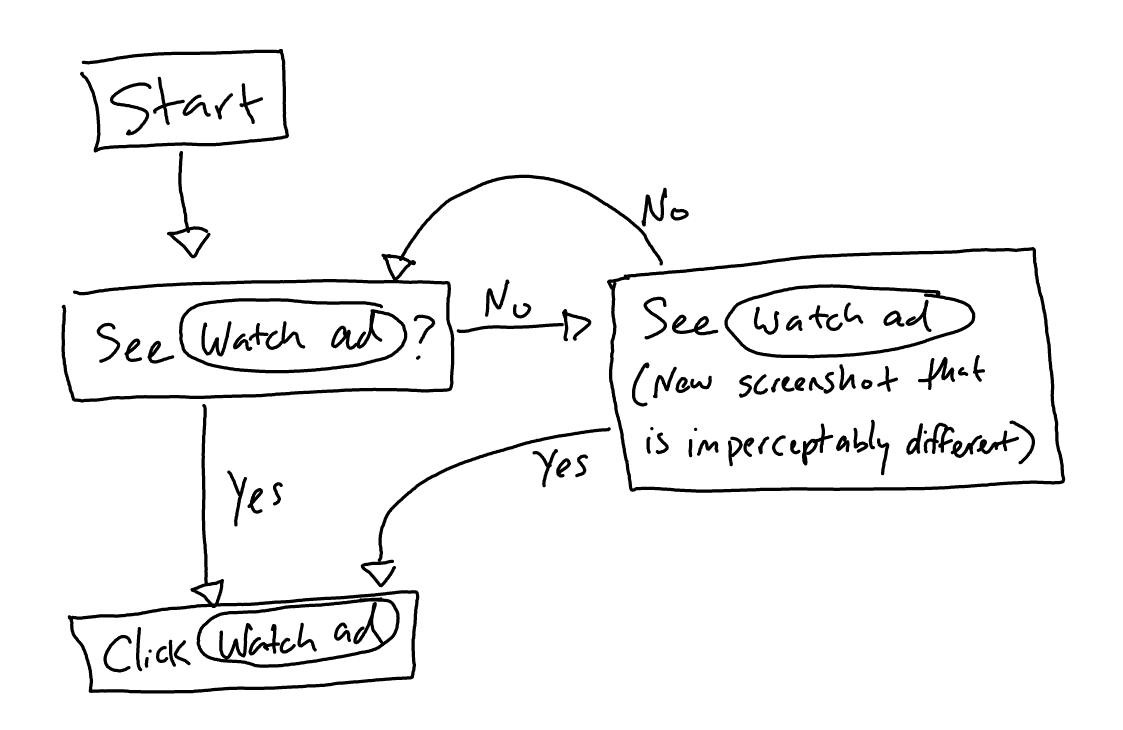
I have noticed that every few days the graphics on the screen shift by a few pixels; enough that my auto-clicker doesn't register the screenshots the same way it did before. Instead of starting from scratch, I just make a new record for the screen that the script got stuck on and add it to my script like so:
Original Flow Chart
Edited Flow Chart
Hopefully this is enough for you to go out and build your own auto-clicking script to catch planes. It will make the slog from Level 29 to Level 30 a lot easier. We will see whether SkyCards cares to attempt to break auto-clickers with future updates; they haven't seemed to bother with them thus far.
How to set up an auto-clicker for ads
If you haven't already figured it out, here's how to set up an auto-clicker to watch ads.DNS settings
First, you need to block ads on SkyCards. If you have a Pi-hole, this should already be done for you. If you want to block ads only on your Android device, find the Private DNS settings and change it to "dns.adguard.com". On Samsung, this is Connections > More connection settings > Private DNS, but the location may vary by device. This will make SkyCards show only a 30-second FlightRadar24 ad that is the same every time.
1. Main screen
Start at the main screen and have your auto-clicker look for the box at the top that has the total number of captures. Be aware that this looks different when you have fewer than 100 captures (it shows a "plus" icon) than when you have 100 or more (no icon). Start with however many you currently have, and once you've got over 100 captures add a second screenshot to check for.
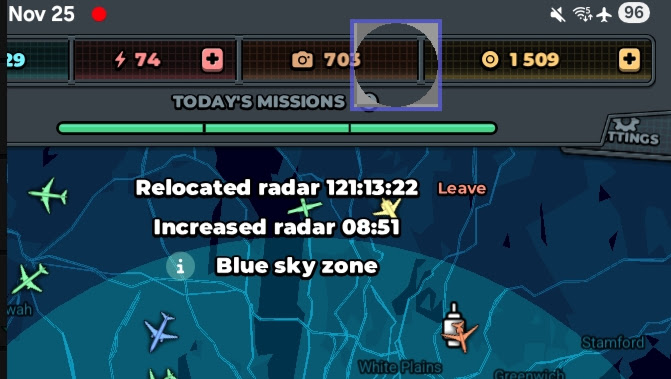
Once it sees that spot, have it click the box.
2. Watch Ads screen
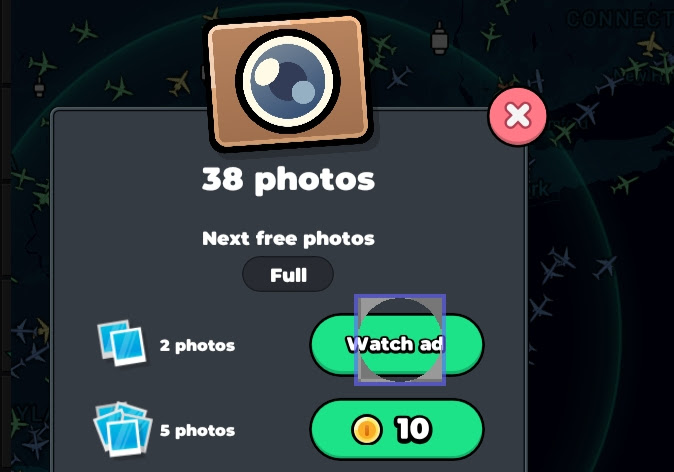
Have your auto-clicker check for the green "Watch ads" button and then click it. If you've watched a lot of ads, there may be a slight delay after clicking the "Watch ads" button while the app tries to find an ad to send you.
3. Ad screen
Have your auto-clicker look for the text at the top right to say "claim reward". Once it does, it can click this.
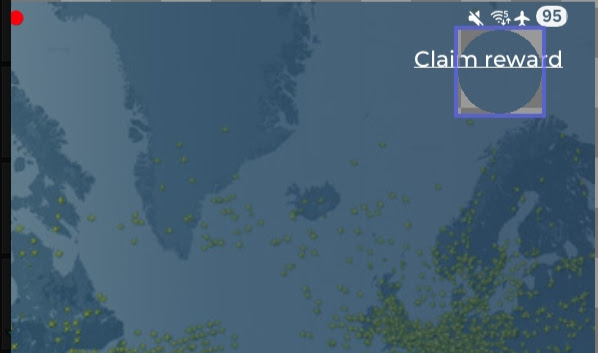
I recommend adding a wait here at the end or at the beginning of the sequence so that the coin-adding animation can play and return you to the main screen.
Frep2 Pro-tips
The help content for Frep2 is pretty decent, but here's some pro-tips I discovered along the way.
- You don't have to record everything at once; when you create a new script you can click the plus at the bottom and add a "Record", which is another recording you've done.
- Frep2 doesn't have a flow chart, so everything is done based on the Post Process settings: "On Success" and "Fail timeout".
- Frep2 automatically adds some waits to things like Check Image. Don't forget to edit the timeout. Also, Frep2 has a "first delay 0.3 sec" and "on success, wait 0.5 sec" that are built in automatically. You can turn this off in the Advanced settings menu for each item.